After-sales APP: e-CAl Tool Section Function Introduction
Watch the video tutorial
Scan the QR code on the left with WeChat or your browser to watch the related video.
Scan the QR code on the left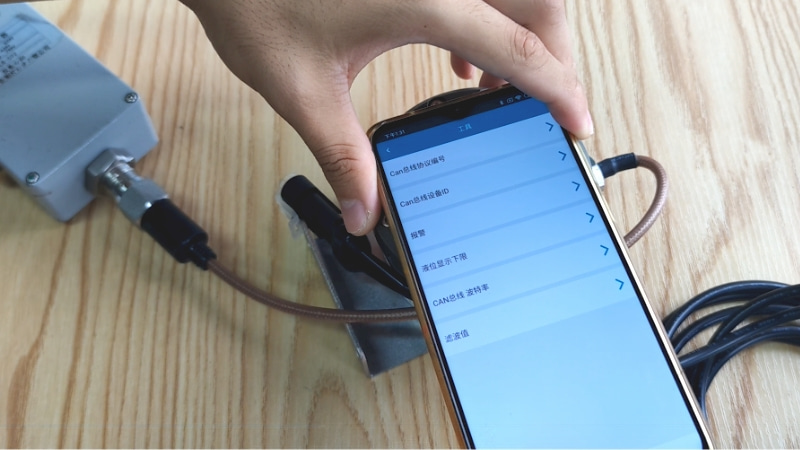
Before operation, ensure the instrument is under normal power supply, open the after-sales version of the e-CAL APP, and enable the mobile phone's NFC function. Tap 'Tools' to enter the tool backend, where various function settings can be configured. CAN bus protocol number: select the corresponding option according to the vehicle manufacturer; for example, for Auman A6, after selection, bring the phone close to the instrument, and the configuration will be complete once the success message is displayed. CAN bus device ID: select according to the cylinder number installed on the instrument; for instance, if installed on cylinder 2, select cylinder 2, and bring the phone close to the instrument until the success message is displayed to complete the configuration. Alarm functions and the lower limit of the liquid level display can be set according to actual requirements. CAN bus baud rate: select the appropriate parameter according to the instrument model, such as 500K; be sure to confirm with after-sales personnel before setting, and after selection, bring the phone close to the instrument until the configuration is successfully completed. The filter value can be set as needed; consult after-sales personnel before configuration. The above are the instructions for configuring the function settings in the tool section of the e-CAL after-sales APP.